Terminal UI
Switch environments, follow logs, run commands, restart services, and add teammates from the terminal.
Run mm with no arguments in an interactive terminal, from anywhere inside a
project:
mm
mm --environment staging
The terminal UI opens on the default environment, or on the one you name. It
refreshes on its own: every 3 seconds for a local environment and every 10
seconds for a remote one. Press ? in any view for its keys and q to quit.
Use explicit subcommands in scripts; the terminal UI needs an interactive terminal.
Find your way around
The header shows the project, the environment, and where that environment
runs: local, or remote and the target's name. A remote environment gets a
solid label so it is hard to miss.
Views are listed in the sidebar and numbered. Press the number to open one.
| Key | View | What it is for |
|---|---|---|
1 | Overview | Health at a glance and what needs attention |
2 | Environments | Every environment, where it runs, and switching |
3 | Services | Services and containers, with their actions |
4 | Ingress | Routes and why a service has none |
5 | Variables | What each service reads and where the value comes from |
6 | Mounts | Development mounts |
7 | Diagnostics | Every finding, with its fix |
8 | TLS | The local certificate authority |
9 | Access | Who you are on the host, and the team |
0 | Gates | Access policies and their users |
Providers, Jobs, and Guided have no number: reach them with tab, or with [
and ], which jump between sidebar groups.
See and switch environments
Press 2.
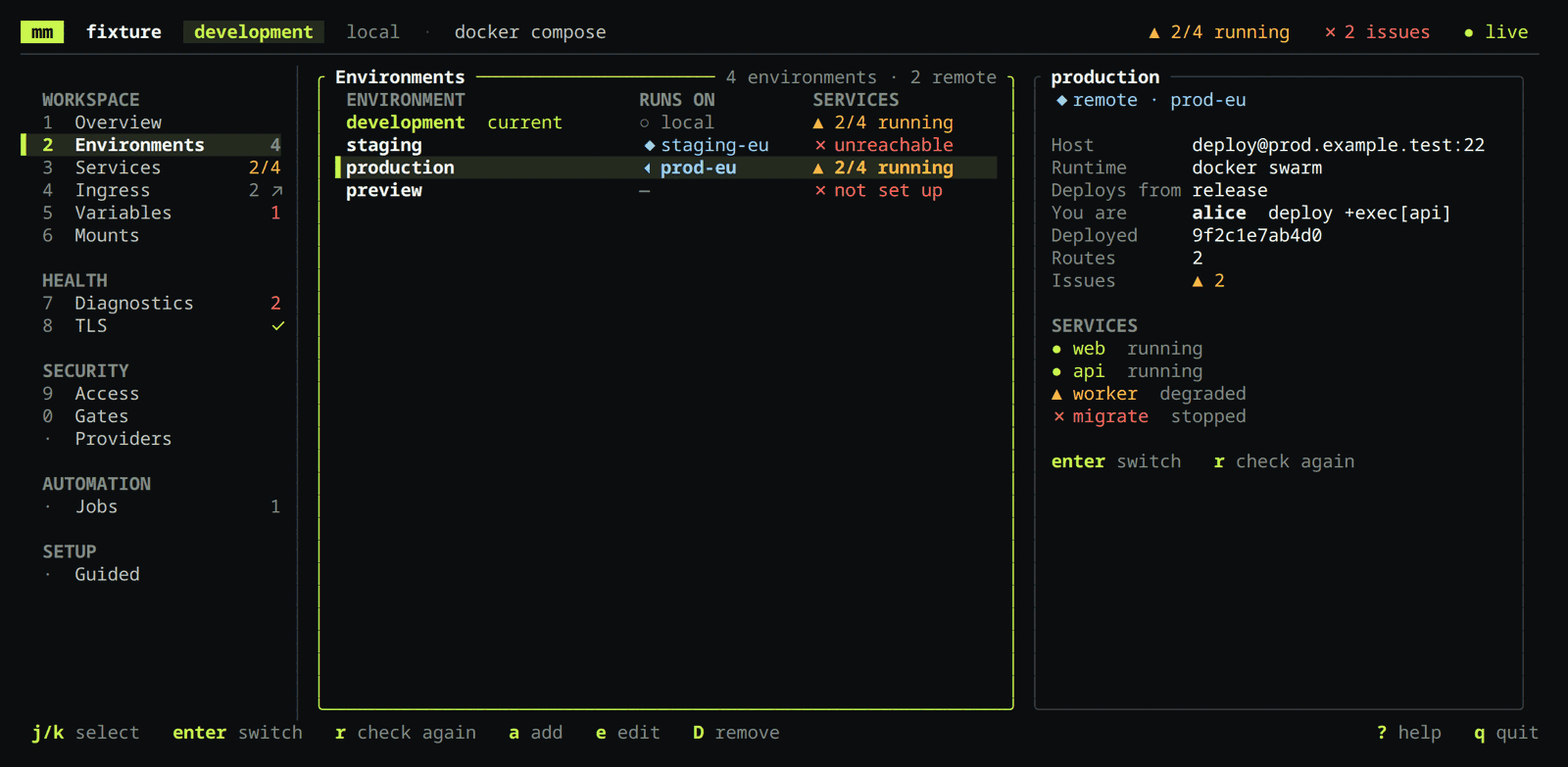
Each row is one environment from the project configuration: where it runs, its
runtime, how many services are running, the deployed commit, and when it was
last checked. The current environment is live. The others are checked when you
open the view; press r to check them again. Checking a remote environment
opens one SSH connection to its host, so the view does not poll them.
Select an environment and press enter to switch to it. Every other view then
shows that environment. If the host cannot be reached, the terminal UI says why
and stays where it was. esc cancels a switch in progress.
An environment marked not set up names a target this machine does not know.
Register the target, or use the repository's target definition, then press r.
Act on a service or a container
Press 3. Services with more than one container list them underneath; space
folds and unfolds the selected service.
Select a service or one of its containers and press enter for its actions,
or use the action's key directly.
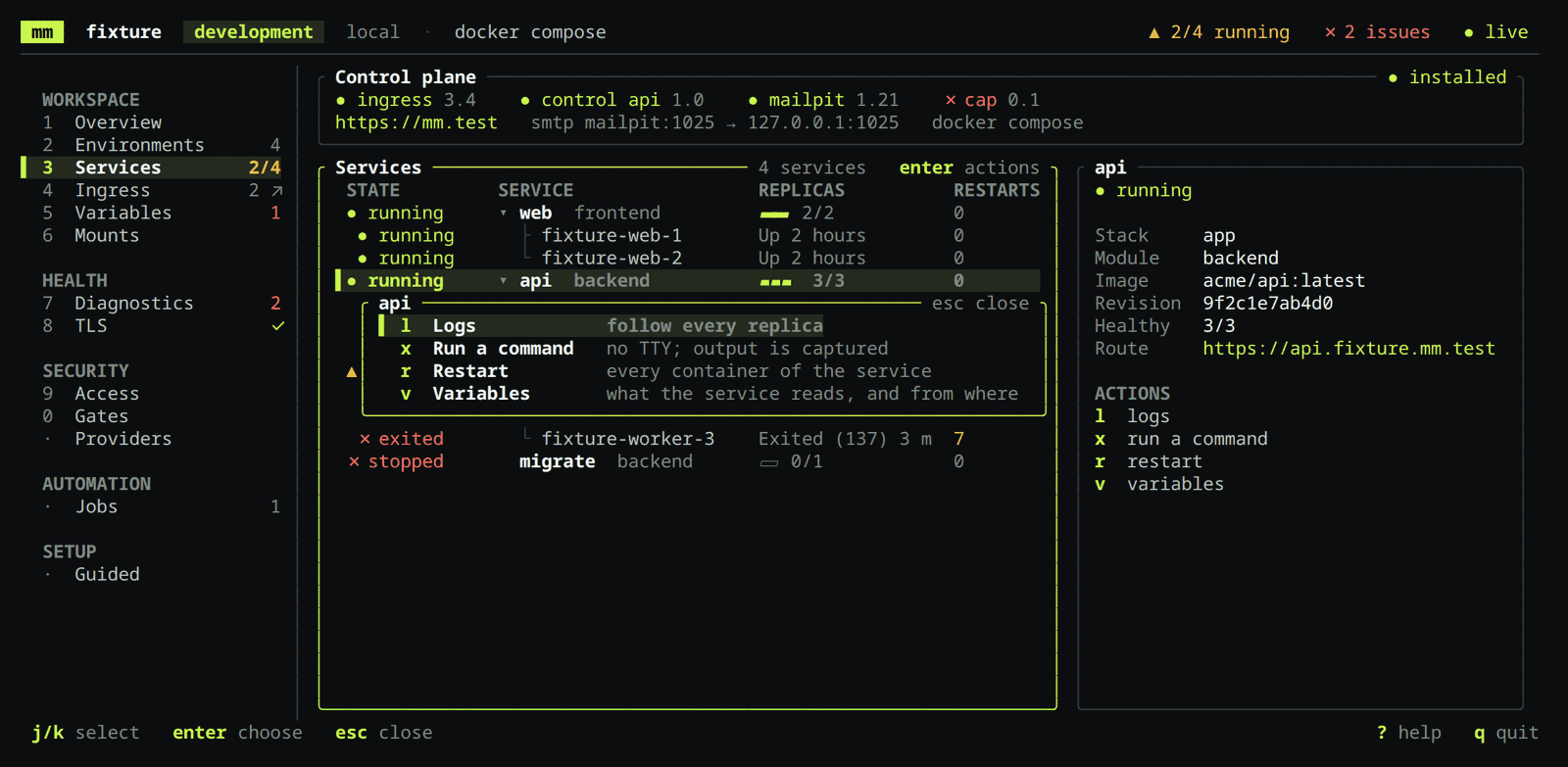
| Key | Action | On a service | On a container |
|---|---|---|---|
l | Logs | Every container | That container |
x | Run a command | Its first running container | That container |
r | Restart | Every container | That container |
v | Variables | The service's variables | The same |
Follow logs
l opens the last 200 lines and follows new ones.
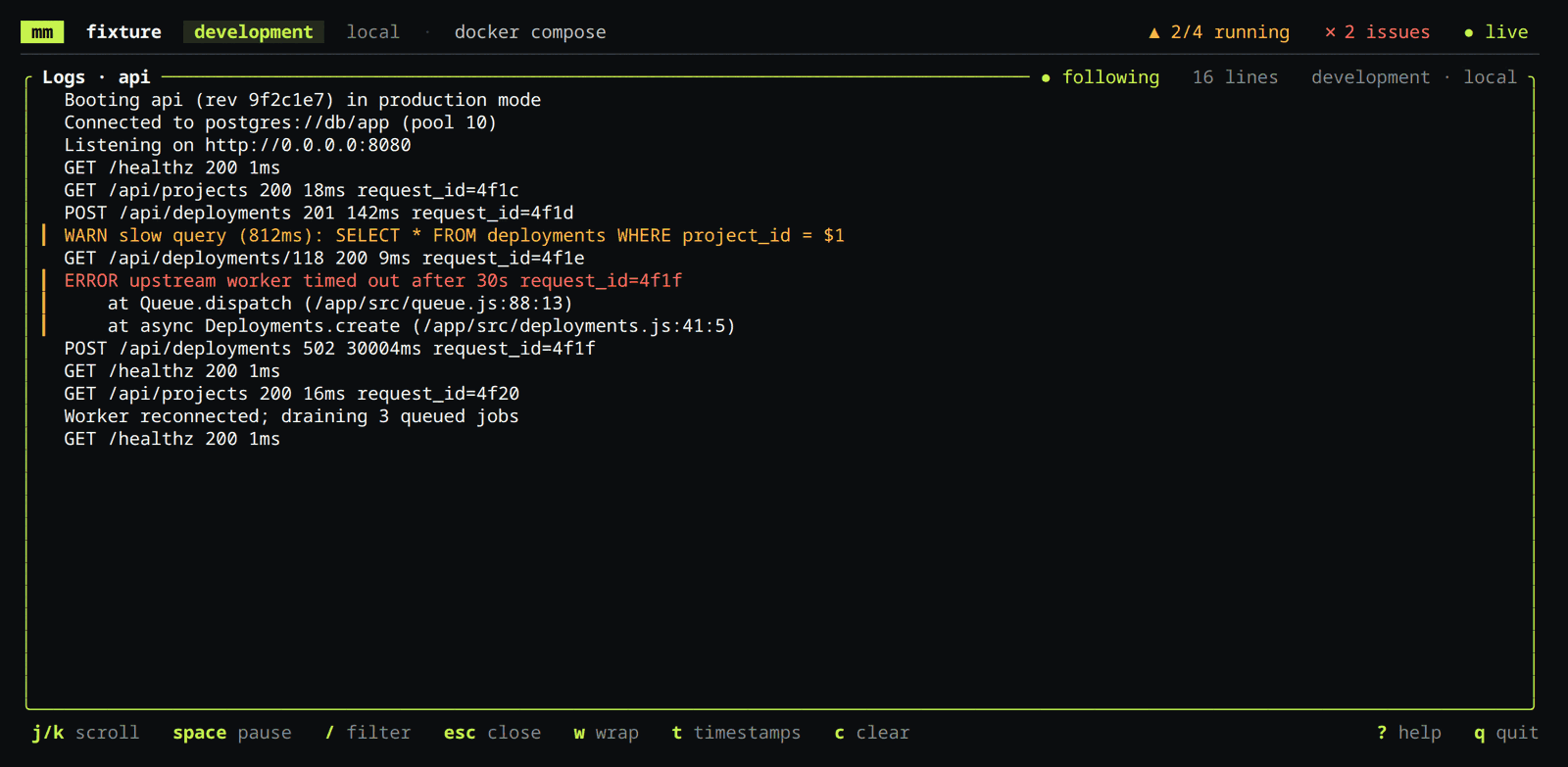
| Key | Effect |
|---|---|
j k, arrows, pgup pgdn | Scroll. Scrolling up pauses; new lines are counted |
space | Pause, or return to the newest line |
/ | Show only lines that contain the text you type |
w | Wrap long lines, or cut them at the edge |
t | Show the time of each line |
c | Clear the lines shown so far |
r | Connect again after the stream ended |
esc | Close |
Lines from standard error have a bar in the margin. Lines that mention an
error or a warning are tinted. Configured secret values are redacted, as in
mm service logs. The view keeps the
newest 5,000 lines.
Run a command
x asks for a command and runs it in one container.
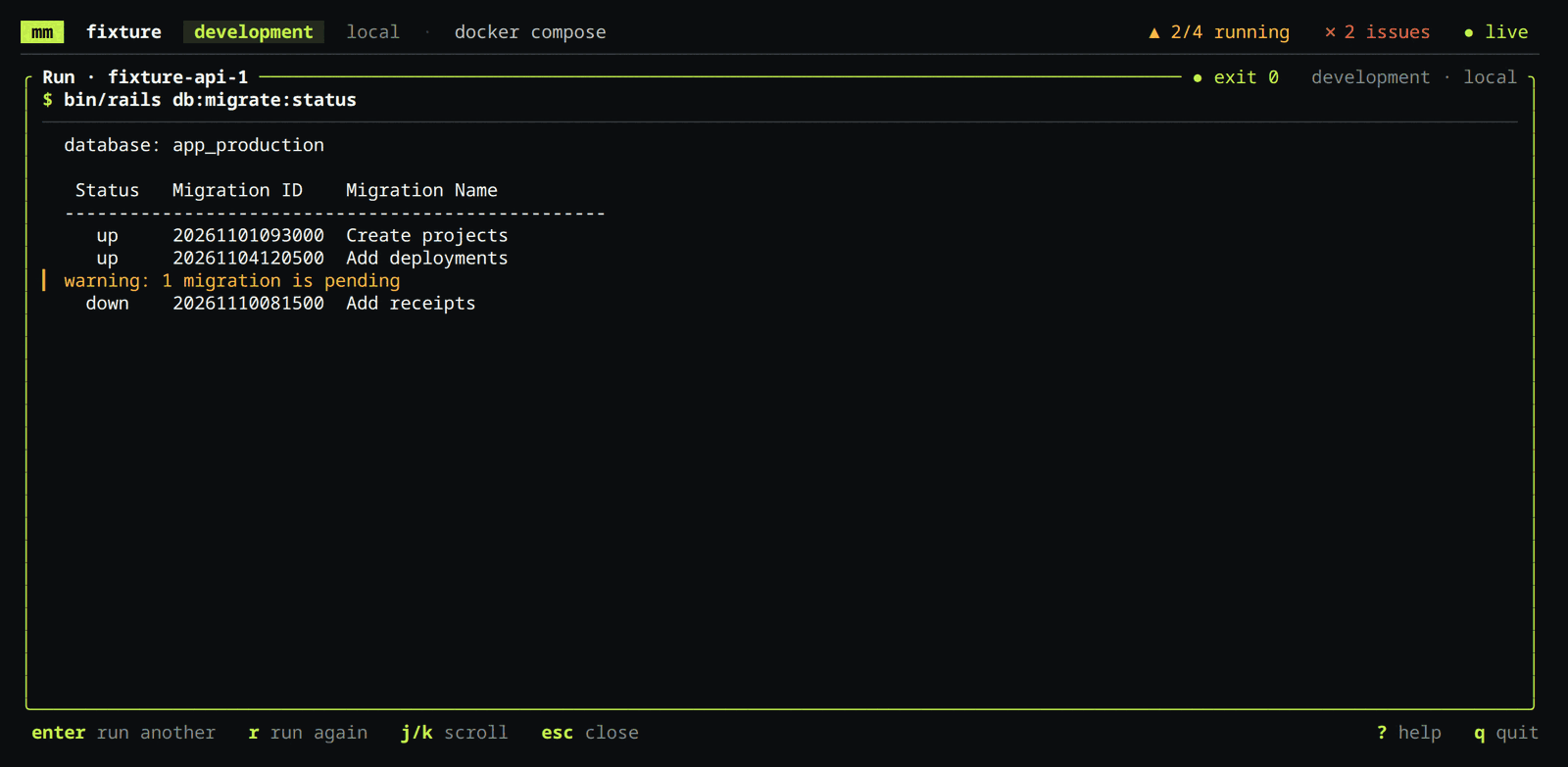
The arguments are passed exactly as typed: no shell runs and there is no TTY. Quotes group words. For pipes, redirects, or variables, start a shell yourself:
sh -c 'ls /app | wc -l'
The up and down arrows recall earlier commands. A command may run for 30
seconds, the same limit as mm service exec; esc stops it sooner. When it ends, enter asks for another and r runs
the same one again. Commands that need input, such as a shell or a database
console, need mm service shell
instead.
Restart
r asks first, then restarts the containers. The image, configuration, and
volumes stay as deployed; to pick up a changed variable or image, press u to
deploy instead. On Docker Swarm, restart replaces the service's tasks in the
order its update policy sets, and a single container cannot be restarted.
Change the configuration
Environments, jobs, schedules, configuration values, and the team can be changed without leaving the terminal UI. The keys are the same in every view that supports them:
| Key | Effect |
|---|---|
a | Add |
e | Edit the selected item |
D | Remove the selected item |
Each change follows the same three steps as
mm config:
- Fill in a short form.
tabmoves between fields and the arrow keys change a choice. An edit keeps every key the form does not show. - Review the exact diff of the configuration file. Nothing is written before
this point;
bgoes back to the form. enterwrites the file. If your review is out of date because the file changed meanwhile, mm refuses and asks you to review again.
A change is a change to files in your checkout. On a remote environment it takes effect when you commit, push, and deploy; the terminal UI lists those steps after it saves.
| View | What you can change |
|---|---|
| Environments | Add, edit (target, runtime, deploy branches), and remove |
| Variables | Set or remove a key's value for the current environment |
| Jobs | Add, edit, and remove jobs and schedules |
| Access | Add a teammate, change their level, remove them |
Change a variable
Press 5, or v on a service to see only its variables. / searches and p
shows only the variables with a problem.
| Key | On a local environment | On a remote environment |
|---|---|---|
enter | Set a value for this workspace only (a local override), or enter a secret without showing it | Set the value in the configuration |
x | Remove the local override | Not available |
c | Set the value in the configuration, for everyone | The same |
D | Remove the value from the configuration | The same |
After a local change, press u to start the stack again with the new value.
Add a teammate
Access to remote environments is declared in the repository's users: key:
who each person is, their public keys, and their level per environment. See
manage remote access for the levels.
Press 9 for the Access view, then a.
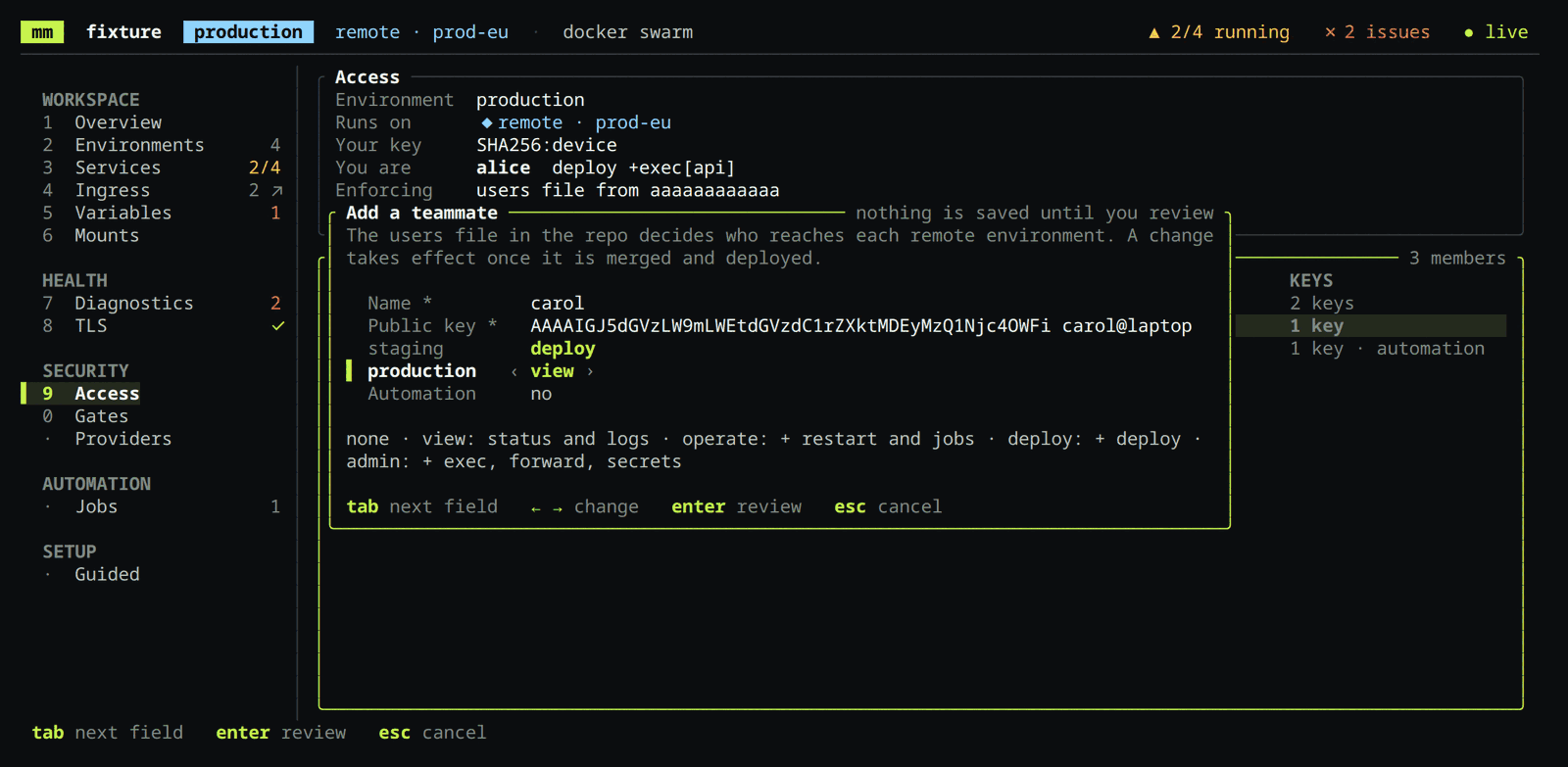
- Ask your teammate to run
mm key createand thenmm key show, and to send you the line that starts withssh-ed25519. It is a public key; the private half never leaves their machine. - Enter their name and paste the key.
- Choose a level for each remote environment with the arrow keys.
noneleaves them out of that environment. - Press
enterand review the diff.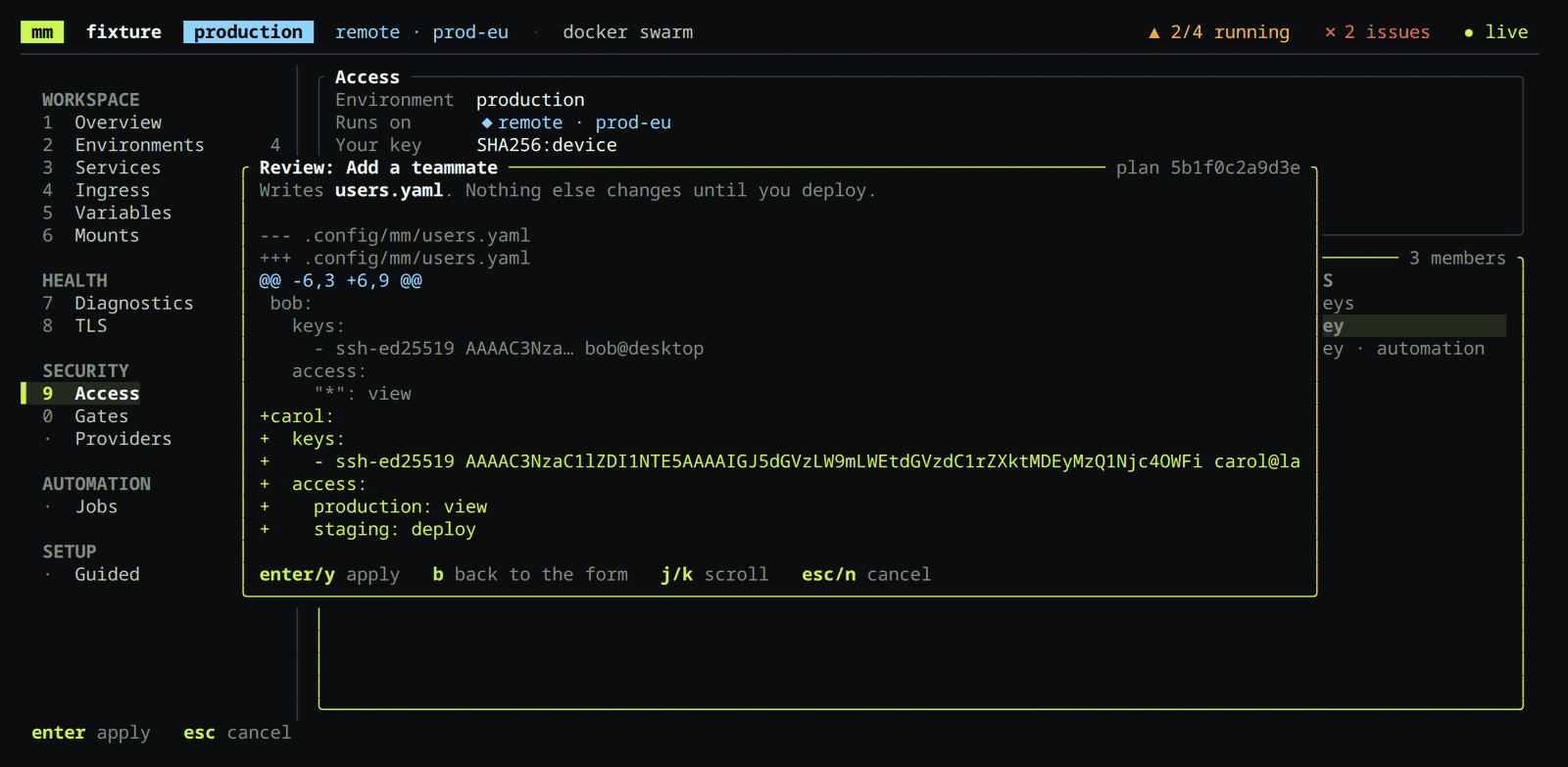
- Press
enteragain to write the file. The terminal UI then lists what is left to do.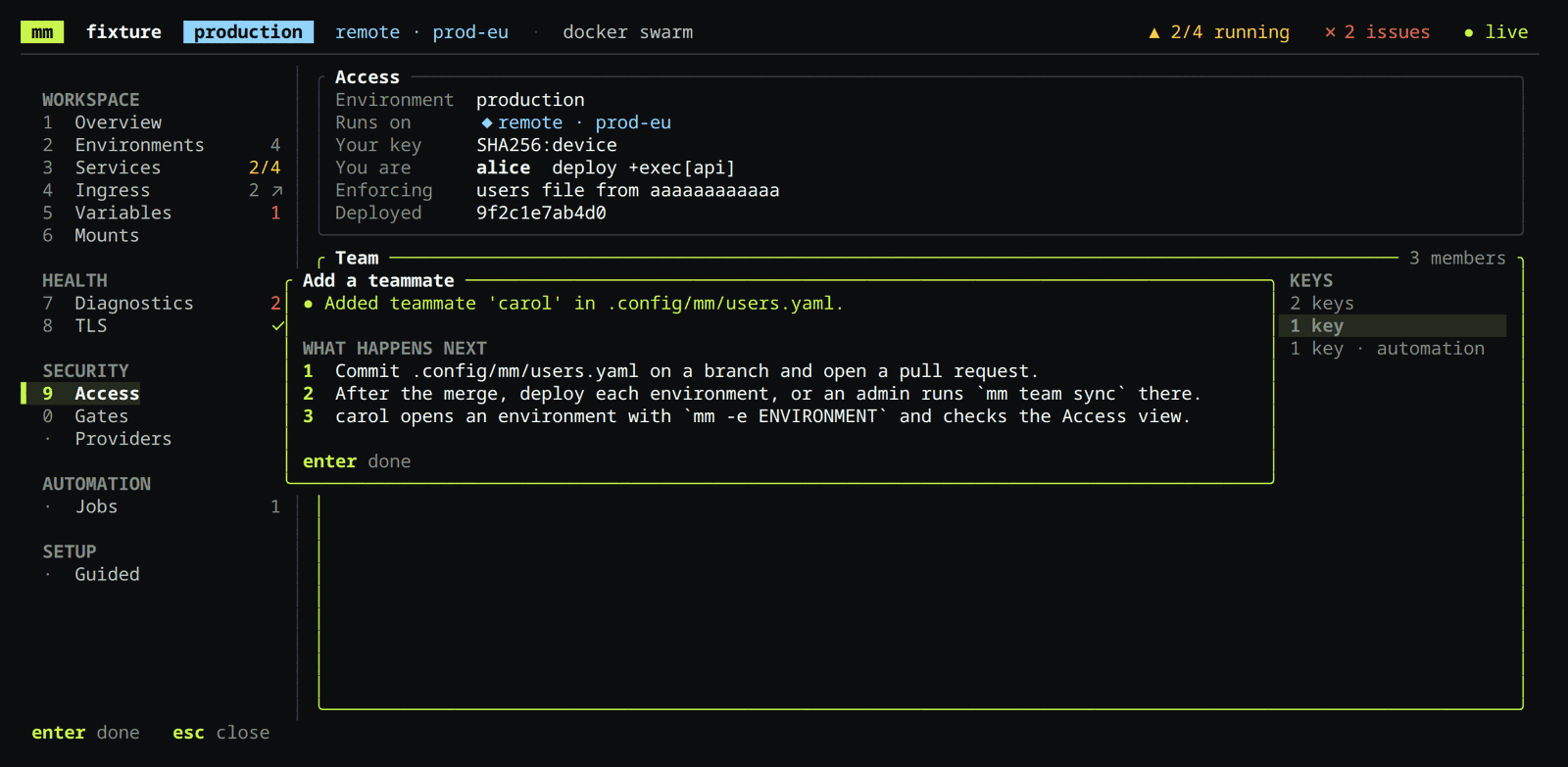
The change gives nobody access by itself. It takes effect when it is merged
and each environment is deployed, or when an admin runs mm team sync there.
Who may merge it is up to your repository: move the users into their own file
with mm config split users and list .config/mm/users.yaml in CODEOWNERS
to give access its own reviewers.
To change someone's level, select them and press e. To remove them, press
D; they keep access to an environment until it is deployed again.
Request access for yourself
On a new machine, press 9 and then j. The terminal UI creates this
device's key if it has none, proposes your entry with the levels you ask for,
and shows the same review. Commit the change on a branch and open a pull
request; a code owner grants the access by merging it.
Work on a remote environment
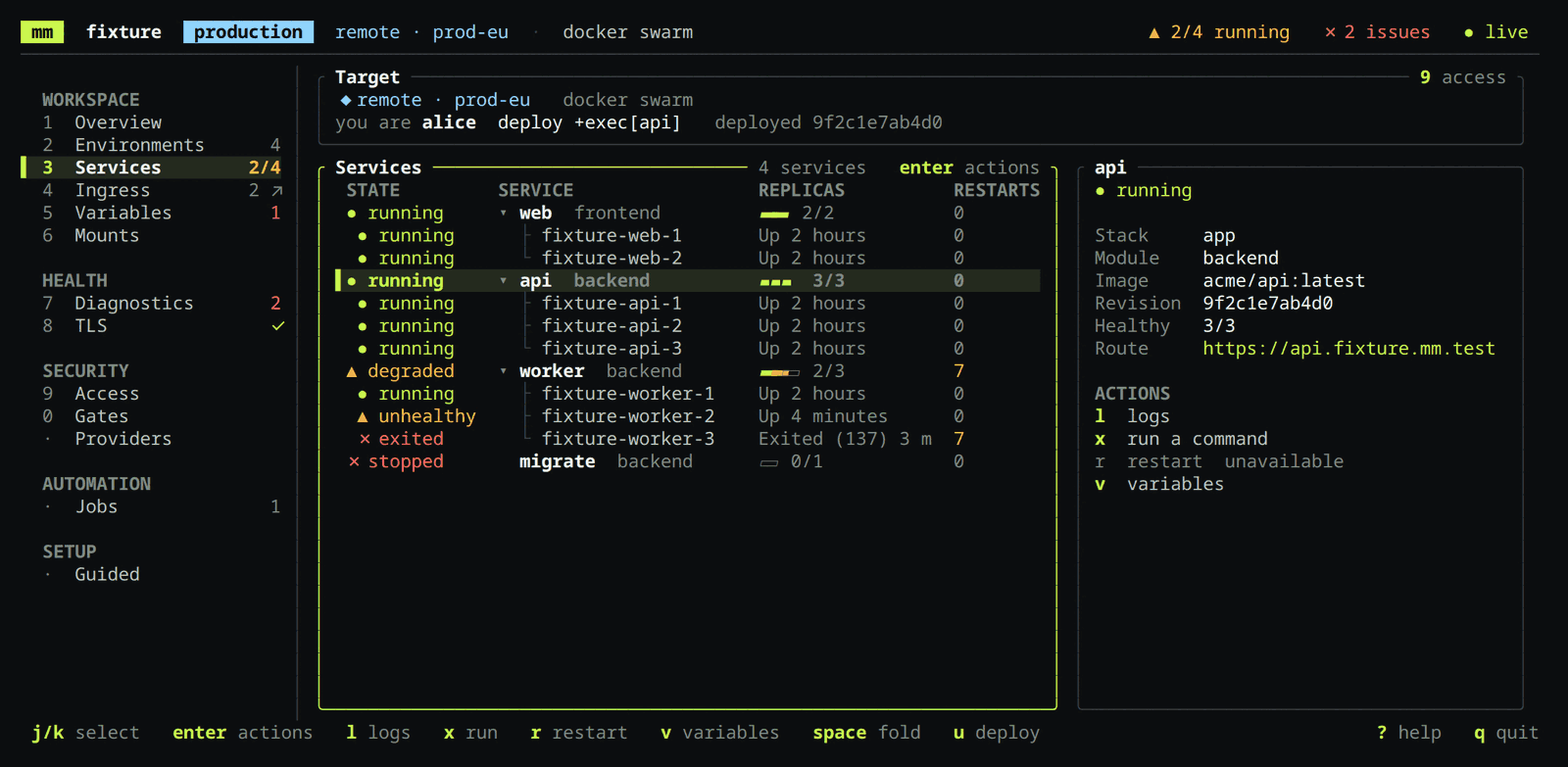
On a remote environment the terminal UI talks to the host's remote daemon with your device key, and the host decides what you may do. The Services view shows the target, who the host says you are, your access, and the deployed commit.
| Action | On a remote environment |
|---|---|
| Status, logs | Available with view access |
| Run a command | Available when the host grants you exec for the service |
u | Reviews and applies a deploy of your current commit |
| Restart | Not available yet. Deploy again to replace the containers |
| Stop | Not available. Stop the stack on the host |
| Variables | enter sets the value in the configuration. Local overrides do not reach a host, so commit and deploy to apply it |
Variables are shown from your checkout. When your checkout differs from the deployed commit, the view says so instead of showing values the host does not use.